How to Create a Digital Business Card (Free, in 3 Minutes)
A step-by-step guide to creating a free digital business card: what to put in every field, how to test it on iPhone and Android, and how to share it.
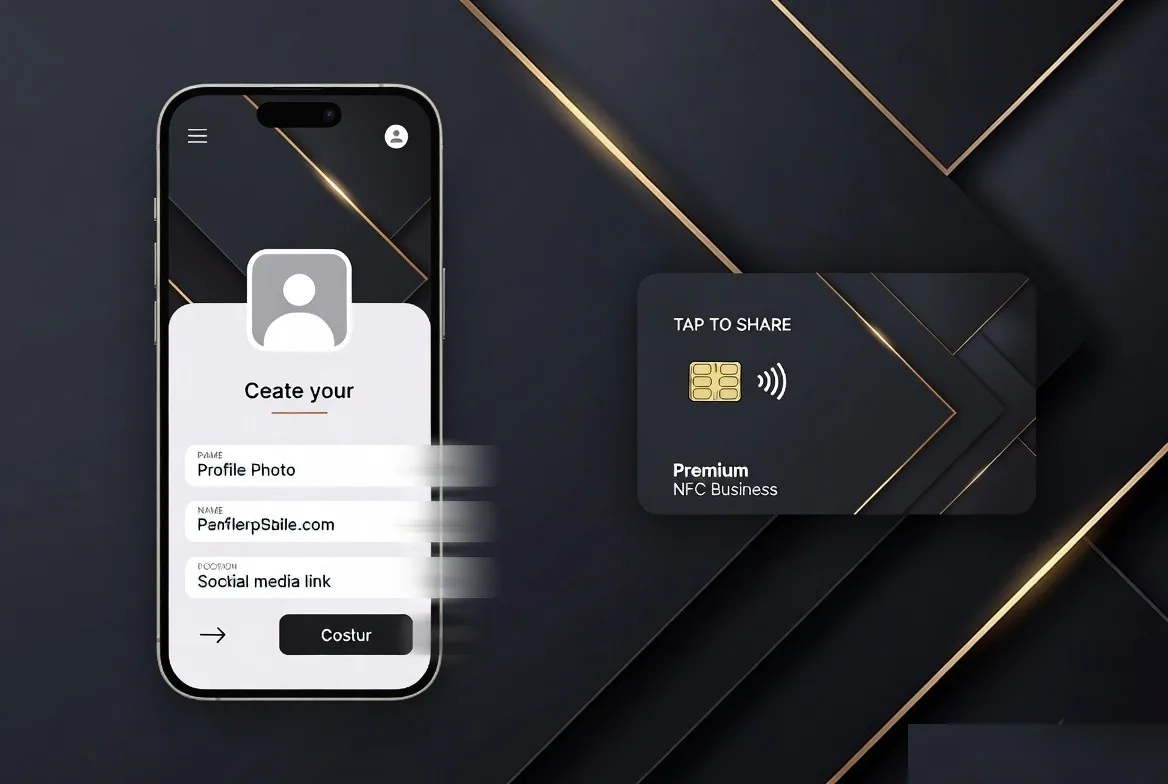
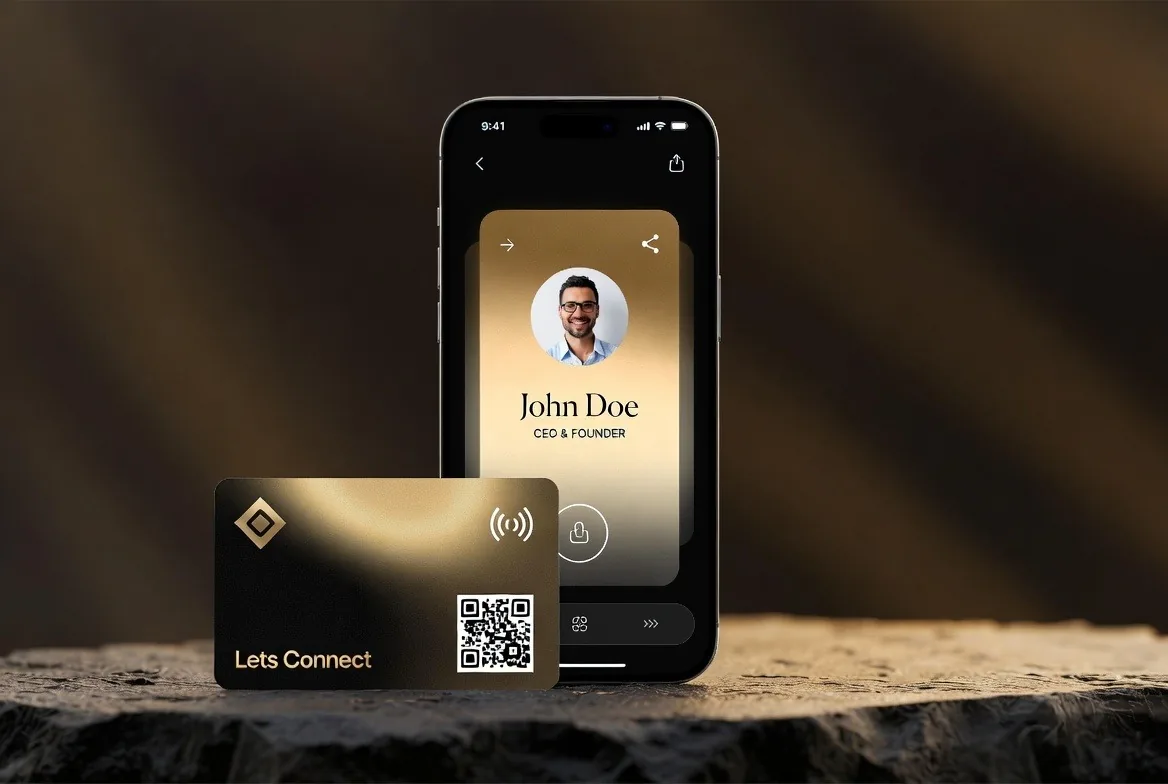
To create a digital business card, sign up for a digital business card app, fill in your name, role, contact details and links, choose a template, then save. You immediately get a shareable URL and a QR code. Test both on an iPhone and an Android phone, then add an NFC card if you meet people in person.
Key takeaways
- You need no design skills, no printer and no app. A browser is enough.
- The fields that matter most are the ones a recipient taps: phone, email, WhatsApp and one clear call to action.
- Always test the live card on a phone you did not build it on.
- Set your URL carefully - it is the one thing that is awkward to change after you print it.
What you need before you start
- A square profile photo, ideally 800 x 800 pixels or larger, well lit and cropped to your face
- A logo with a transparent background if you have one
- Your mobile number in full international format, for example +44 7300 230524
- The email address you actually monitor
- The two or three links that earn you work: booking page, portfolio, reviews or website
Have these ready and it really does take about three minutes. Looking for a logo halfway through is what makes it twenty.
Step 1: Sign up for a free digital business card
Go to letsconnect.digital and choose Get Started Free. You can register with an email address or with Google, and no payment details are required for the free tier. iPhone users can complete every step in Safari - the process is identical, and there is a device-specific walkthrough for creating a digital business card on iPhone.
Choose your URL carefully
Your card will live at something like letsconnect.digital/card/your-name. Use your own name if you are the brand, or the business name if you will hand the card to a colleague later. Keep it short, use hyphens rather than underscores, and avoid dates or job titles that will age. Once a QR code is printed on 500 leaflets, this is the value you cannot easily change.
Step 2: Add your details
Every field is optional, so people tend to fill in too many. Aim for a card someone can act on in one screen.
Name and job title
Use the name you introduce yourself with. For the title, describe the outcome you deliver rather than an internal grade: "Commercial Electrician" beats "Field Operative II". This text also lands in the saved contact, so it is how you appear in their address book months later.
Company and bio
Keep the bio to one or two sentences that answer "why would I call you?". Name who you help and what you do for them. Long biographies get skipped on a phone.
Photo and logo
Use a real headshot rather than a logo in the photo slot. Faces are what make someone remember meeting you, and the logo has its own place. Avoid group photos and heavy filters.
Phone, email and WhatsApp
Enter numbers in international format so they dial correctly abroad. If WhatsApp is how you actually do business, add it, because plenty of people would rather message than call.
Website and social links
Add the three or four that serve a purpose. A dormant X account or an empty Facebook page dilutes the card. LinkedIn for B2B, Instagram for anything visual, and your booking link if you sell time.
Step 3: Pick a layout
Lets Connect has 40+ templates. Pick one built for how you work: sales-led layouts put the call button first, portfolio layouts lead with a gallery, and trade layouts push reviews and quote requests up the page. Every layout is mobile-first, because in practice almost nobody opens your card on a desktop.
Order your sections by intent
Put the action you want most at the top. If you want bookings, the booking button goes above your social links. If you want reviews, the review prompt sits above the gallery. Everything below the first screen gets a fraction of the taps.
Step 4: Get your QR code and link
When you save, Lets Connect gives you your own URL and a QR code you can download. Put the QR in your email signature, on slides, on invoices, on packaging and in your shop window. Placement ideas and print sizing are covered in adding a QR code to your digital business card.
Add a wallet pass
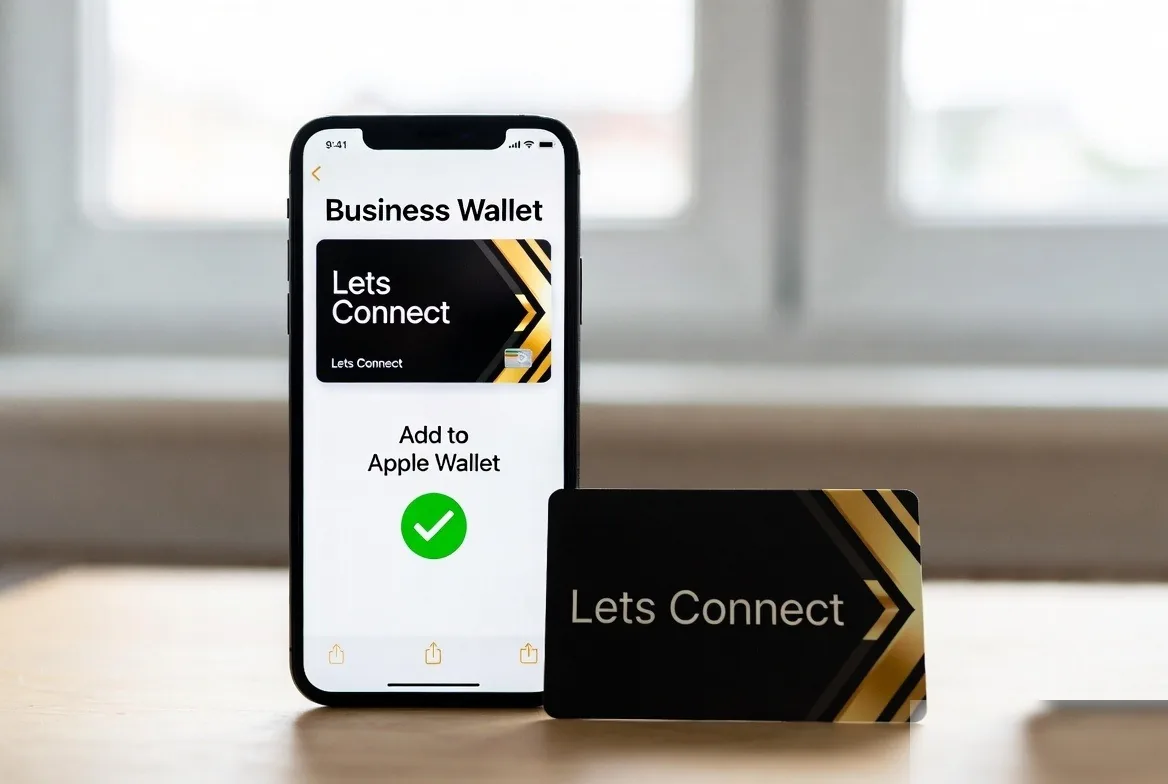
Generate the Apple Wallet or Google Wallet pass while you are here. It puts your own card two taps from your lock screen, which is the fastest way to share when you do not have a physical card on you. The steps are in adding your card to Apple Wallet.
Step 5: Test it on both platforms
Most people skip this step. Do it before you send the link to anyone.
On an iPhone
- Open your URL in Safari and check the photo, name and buttons render without cut-off text.
- Tap Save Contact and confirm the .vcf import fills first name, last name, phone, email and company correctly.
- Tap the phone number and confirm it dials the right number, including the country code.
- Scan your own QR code with the camera app from about 30cm.
- If you have a card, hold it to the top rear of the phone and check the banner appears.
On an Android phone
- Open the URL in Chrome and check the layout again - font rendering differs from iOS.
- Save the contact and verify it lands in Google Contacts with the fields separated properly.
- Confirm NFC is enabled in quick settings, then tap the card against the middle of the phone's back.
- Test the WhatsApp button, which behaves differently on Android than on iOS.
Borrow a colleague's phone if you only own one platform. Ten seconds of testing prevents a card that fails in front of a prospect. For a fuller picture of what the recipient's phone is doing, see how digital business cards work.
Step 6 (optional): Order a physical NFC card
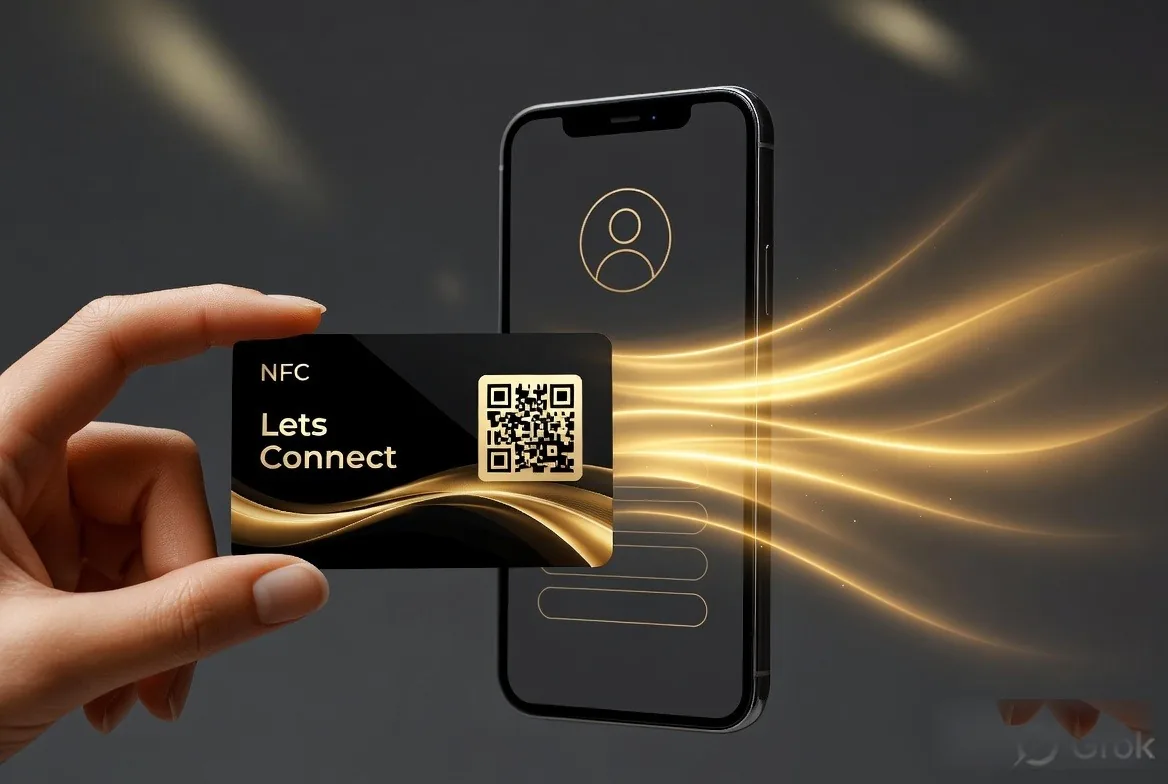
Lets Connect sells NFC cards in PVC (£20), wood (£50) and metal (£100). Tap it on any modern phone and your profile opens with no app. If you are weighing up whether the hardware earns its place, read are NFC business cards worth it and NFC versus QR sharing.
What to put in each field
If you are unsure how much to write, use this as a working reference. It reflects what people actually tap on a phone rather than what looks complete on a desktop preview.
| Field | What to put | Why it matters |
|---|---|---|
| Name | The name you introduce yourself with | It becomes the contact name in their address book |
| Job title | The outcome you deliver, not an internal grade | Tells a stranger whether you are worth calling |
| Bio | One or two sentences: who you help and how | Anything longer is skipped on a phone screen |
| Photo | A lit, cropped headshot | Faces are what make a meeting memorable |
| Phone | Full international format with country code | Dials correctly from anywhere |
| The inbox you monitor daily | A dead address kills the follow-up | |
| Links | Three or four that earn you work | Every extra link dilutes the ones that matter |
| Call to action | Book, quote, review or call | A card without one is just a contact list |
Set up lead capture before you share it
A card that only hands out your details does half the job. Lead capture is part of Business Add-ons (£99, paid once). With lead capture it works both ways: a visitor enters their name, email and often a phone number, and in return they unlock your details or a gated link. You end the day with a list rather than a vague memory of who you met.
Keep the form short
Two or three fields is about right. Every additional question costs you completions, and you can ask the rest in your first reply. Where the form is optional, keep a visible way to skip it so you do not block someone who simply wants your number.
Say what you will do with the data
If you are collecting personal details in the UK you have UK GDPR obligations: tell people why you are asking, only ask for what you need, and store it somewhere you can delete from on request. A single line of plain wording under the form is enough. The follow-up side is covered in lead capture from digital business cards.
Common mistakes to avoid
- Cramming in every link you own. Three good buttons beat twelve.
- Using a logo instead of a headshot, so nobody remembers meeting you.
- Leaving the phone number in local format, so it fails to dial internationally.
- Never testing the Save Contact file, so the recipient saves a blank contact.
- Choosing a URL with a job title in it, then changing role.
- Printing 500 QR codes before checking the code scans at the printed size.
- Skipping lead capture, so you learn nothing about who opened your card.
Keep it working after launch
Give your card ten minutes every few months. Check that every link still resolves, since booking pages and social handles change more often than people expect. Look at which buttons are actually being tapped and move the winners higher up the page. Refresh the headshot when it stops looking like you, and remove any link that has not been used in six months.
If your role changes, edit the profile the same week and resend your link to recent contacts, because details already saved into an address book will not update themselves. If you order printed material, reuse the same URL rather than creating a second profile - one page with all the history is far more useful than two half-populated ones.
How to share it once it's live
- Tap an NFC card against someone's phone in person.
- Let them scan the QR from your phone screen or the back of your card.
- Paste the link into your email signature, WhatsApp, Instagram bio and LinkedIn about section.
- Add the QR to invoices, quotes and proposal documents.
- Put it on van livery, uniforms or a shop window if you serve a local area.
- Include it in your out-of-office reply.
Once people start opening it, turn on lead capture so visitors leave their details - the follow-up mechanics are in lead capture from digital business cards.
Frequently asked questions
How long does it take to create a digital business card?
About three minutes if your photo, logo and links are ready. Add ten minutes if you want to test on both platforms and set up a wallet pass, which is time well spent.
Can I create a digital business card for free?
Yes. The free Lets Connect plan gives you a profile, contact details, social links, share-to-save and a QR code with no payment details and no expiry.
Do I need an NFC card to have a digital business card?
No. The QR code and link work on their own. The card is an optional accessory for in-person meetings.
Can I edit my card after sharing it?
Yes, and that is the main advantage over paper. Editing the profile updates every existing link, QR code and card instantly.
What happens if I change job?
Update your role and company in the dashboard. Anyone who opens your card sees the new details, though contacts already saved to an address book keep the old ones, so resend your link.
Can I have more than one card?
Yes. The Multi-Profile add-on is a one-time £99 and lets you run more than one card, which is handy if you have a side business or two different audiences.
That is all there is to it. Your card is live, you can edit it whenever you like, and the dashboard shows how often it is opened.
Create Your Digital Business Card and Pay Once
Making the card is the easy bit. The bigger choice is which platform you stick with. An individual Lets Connect card has a lifetime one-time price, and current pricing is a launch offer with a fixed number of seats.
- Start free: the free Lets Connect plan gives you a full digital profile, contact details, social links, share-to-save and a permanent QR code - no card, no expiry.
- Go pro: Full Brand Presence - £49 one-time adds the blog, products, testimonials, gallery, document attachments, 40+ templates, password protection, visibility controls and analytics.
- Go business: Business Add-ons - £99 one-time adds the Kanban CRM, AI Card Scanner, Reviews engine, Bookings, Enquiries, Lead Capture, Custom Forms, Data Export and Location Tracker.
- Pair it with a physical card - PVC £20, Wooden £50, Metal £100 - all NFC-enabled, all printed with your QR. Backed by a 30-day money-back guarantee.
More tutorials on the Lets Connect blog, full feature breakdown on the pricing page, or explore the free digital business card plan.
Put this guide into practice
To choose the presentation and colours for your card, explore templates and colours. The guide explains the setup and which plan includes it.
To collect the other person’s details during the exchange, explore lead capture. The guide explains the setup and which plan includes it.
To keep the conversation, activity logs and next task together, use the built-in crm. The guide explains the setup and which plan includes it.
Start with your free digital business card, then choose paid tools only when your workflow needs them.
Why Lets Connect is the best digital business card
- Free to start: a digital card with your own link and QR code, no card details needed.
- Pay once: lifetime plans, no card subscription.
- The follow-up is built in: lead capture, a CRM, a card scanner, bookings, forms and review links in one dashboard.
- No app on either side: it opens in the browser on iPhone and Android.
- 5.0on Google from 17 reviews
- 5.0on Trustpilot from 9 reviews
- 99.4% positiveon eBay from 239 ratings