Digital Business Card with QR Code: How to Create One (Step-by-Step)
How to create a digital business card with a QR code that always scans: static vs dynamic codes, where to place it, print sizes, contrast and testing.
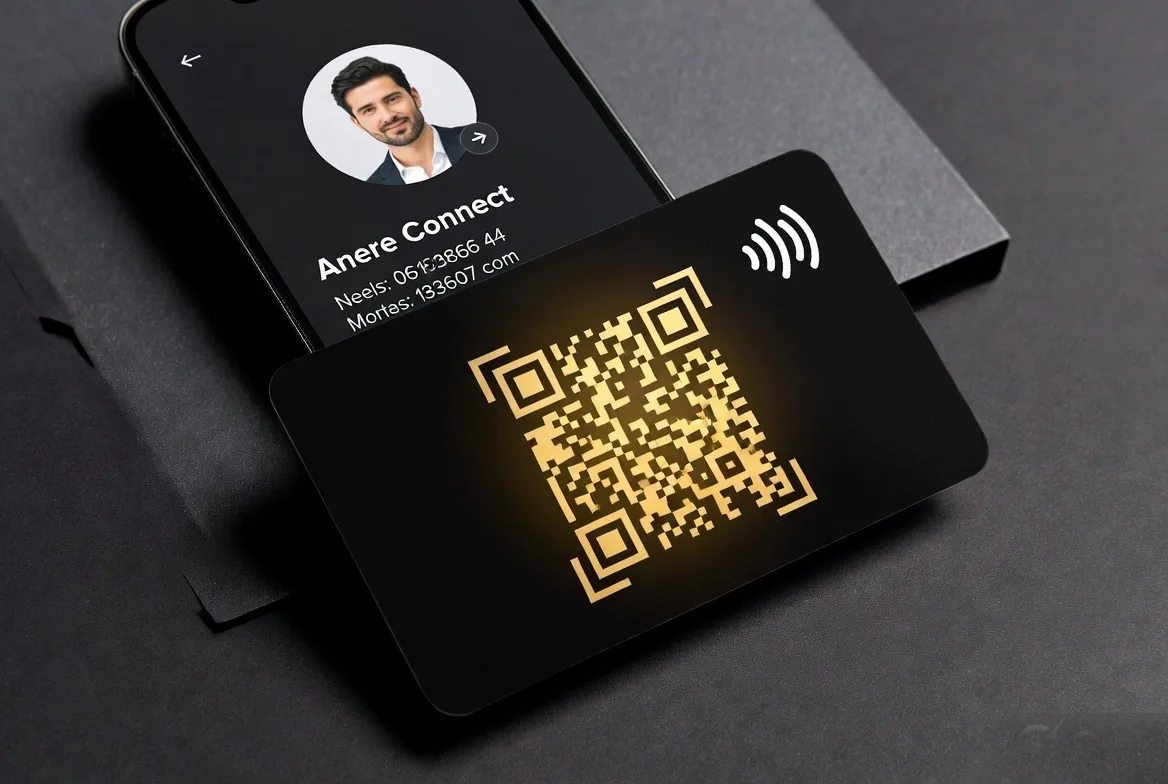
To create a digital business card with a QR code, set up a free profile, open the Share menu and download the QR code that points to your card's link. Print it or show it on your phone, and anyone who scans it with their camera opens your card and can save you as a contact, with no app needed.
A digital business card with a QR code turns any flat surface into a way to share your contact details. The other person points their camera at the code and lands on your digital business card. With Lets Connect neither of you needs an app, and nobody types anything.
The short version
- A QR code is the universal fallback: it works on any phone with a camera, including handsets with no NFC.
- Point the code at your card's own link, so you can change every detail later without reprinting.
- Print at 2 cm minimum, keep a clear quiet zone and use dark ink on a light background.
- Add a short instruction under the code; a bare square gets ignored.
- Test with a plain camera app on both iPhone and Android before anything goes to print.
How QR codes work with a digital business card
The code is a printed encoding of a web address. A phone camera decodes it, opens the address in the browser and your profile loads, complete with a Save Contact button that writes a vCard into their address book. The code itself holds no personal data, so nothing needs reprinting when your details change: you edit the profile behind the link.
Where QR fits alongside NFC
NFC is quicker when you are standing in front of somebody. QR reaches everyone else, in print or on a screen. That is why every Lets Connect card carries both a chip and a printed code. The trade-offs are set out in NFC vs QR business cards.
What a good QR card needs
- A link that stays the same when your details change, so the code never needs reprinting
- Enough error correction that the code still scans when printed small or slightly scuffed
- A clear call to action under the code, such as Save my contact
- A high-contrast colour combination, because dark on light prints best
- A vector file (SVG or EPS) for print, and a PNG for screens
How to create a digital business card with a QR code
- Sign up for a free profile at letsconnect.digital.
- Fill in your name, role, photo, contact details and socials.
- Open the Share menu. Your QR code is already there.
- Download as PNG or SVG and drop it into your design.
- Scan your own code from a printed proof before you order a full run.
If you want the full profile build rather than just the code, follow the step-by-step card setup guide first and generate the QR at the end.
Static vs dynamic QR codes
A static QR encodes the destination directly, so the destination can never change. If you rebrand or restructure your site, every printed code is wasted. A dynamic QR encodes a short link, and what sits behind that link can change as often as you like. A Lets Connect code works this way: it points at your profile, and you edit the profile.
| Static QR | Dynamic QR | |
|---|---|---|
| Destination editable | No | Yes, any time |
| Survives a rebrand or new website | No | Yes |
| Scan tracking | None | Views and link clicks |
| Pattern density | Higher with long URLs | Lower, so it prints smaller |
| Right for print runs | Rarely | Almost always |
Density matters in practice. A long URL packs more modules into the same square, which means the code needs to be printed larger to stay readable. A short link is easier to scan at badge size.
Where to put your QR code
Everyday placements
- Email signature, under your name
- Last slide of every Keynote or PowerPoint deck
- Your video call background, sized large enough to scan on screen
- Lanyards and name badges at conferences
- Invoices, quotes and proposal covers
Physical and premises
- Posters and event booths
- Restaurant menus, shop windows and reception desks
- Vehicle decals and van livery
- Site boards, for-sale boards and window displays
- The back of your printed card, if you still carry one
Match the size to the reading distance. A code on a menu is read from 30 cm; a code on a van is read from several metres, and needs to be far larger.
Minimum print sizes and contrast
Size
- Business cards, menus and badges: at least 2 cm square
- A4 posters and flyers: 3 to 4 cm square
- Booths, banners and shop windows: 10 cm or larger
- Vehicles and site boards: scale up so the code is roughly a tenth of the reading distance
Contrast and clear space
- Dark modules on a light background, never the reverse
- Keep a quiet zone of clear space around the code, roughly the width of four modules
- Avoid placing the code over a photo, gradient or busy pattern
- Matte finishes scan more reliably than high gloss under bright lights
- If you must brand the code, tint the dark modules only and keep the contrast strong
How to test a QR code properly
- Use the built-in camera app on both an iPhone and an Android, not a third-party scanner
- Test the printed proof, not the screen version
- Test at the real reading distance and in dim light as well as bright
- Test at an angle, since nobody stands square in front of a poster
- Check the page it opens loads fast on mobile data, not just on wi-fi
Common mistakes that make QR codes fail
- Printing too small for the reading distance
- Low contrast, inverted colours or a code sitting on a photograph
- No quiet zone, so the scanner cannot find the code edges
- A static code pointing at a URL that later changed
- A logo overlay covering too much of the pattern
- No instruction text, so people do not realise it is scannable
- Placing the code where a phone cannot physically reach, such as high on a wall or behind glass at an angle
- Linking to a slow, non-mobile page instead of a card profile
Does a QR code work on a screen as well as in print?
Yes, and it is often the easiest way to share when you have nothing printed with you. Show the code from your profile or your wallet pass, turn the brightness up, and hold the phone still while the other person scans. On a video call, place the code as a corner overlay or on your background rather than holding it to the camera, where compression can soften the pattern.
The one screen situation to avoid is direct sunlight. If a scan fails outdoors, read out the short link instead; it is four or five words and it always works.
Should the QR code go on the front or the back?
On a printed card, the back is usually right: the front carries your name, role and brand, and the back carries the code with a short instruction. That gives the code a clear space of its own, which is what a camera needs.
There is one exception. If the card is being left behind rather than handed over, on a counter, a table or a noticeboard, put the code on the side that will be facing up. A code nobody can see cannot be scanned, however well it is designed.
QR code or short link: which should you share?
Use the QR code whenever the other person is looking at something physical or at your screen, and use the short link whenever you are already typing. In an email, a message or a LinkedIn reply, a link is faster to tap than a code is to scan. On a card, a poster, a slide or a stand, the code wins because there is nothing to type.
Both point at the same profile, so there is no reason to choose one permanently. Keep the code saved to your photos and your wallet pass, and keep the link in your signature.
What is inside a QR code?
A QR code is a grid of black and white modules with three large squares in the corners that tell a scanner where the code starts and how it is oriented. A portion of the grid is redundancy: error correction data that lets the code still resolve when part of it is scratched, creased or covered. That redundancy is why a slightly worn card still scans, and why a logo placed carefully in the centre does not break the code.
Why short links scan better
The longer the encoded address, the more modules are packed into the same square, and the smaller each module becomes at a given print size. A short link produces a sparser, chunkier pattern that a phone camera locks onto faster in poor light or at an angle.
Designing a branded code that still scans
- Tint the dark modules in a brand colour, but keep them clearly darker than the background
- Never invert the code so the modules are lighter than the background
- Keep a logo overlay small and centred, where error correction can absorb it
- Use a solid background panel behind the code if the surrounding design is busy
- Export as a vector for print so the module edges stay crisp at any size
- Print a proof and scan it before signing off the artwork
Decorative rounded modules and gradient fills usually still work, but every stylistic step reduces the margin for error. If the code has to scan from a van in poor light, keep it plain.
Using QR codes across a team or a venue
Teams
Give each person their own code pointing at their own profile, then keep the design template identical so the set looks like one brand. A shared administrator can update every profile behind those codes without any reprinting, which is the practical advantage over printed cards for anyone managing a stand or a branch network.
Premises and vehicles
For shop windows, reception desks and vans, place the code at roughly chest height where a phone can be held steady, add a one-line instruction, and avoid glass at a sharp angle. Anything a customer reads while walking past needs to be considerably larger than a card-sized code.
Measuring what your QR code does
- Scan volume tells you whether a placement is working at all
- Link taps on the profile tell you what people actually wanted
- Save Contact taps are the nearest thing a card has to a sale
- Lead form submissions turn an anonymous scan into a named contact
Use separate placements to compare: if the code on your email signature outperforms the one on your stand, move your effort. Full detail on turning scans into records is in our guide to capturing leads from a digital card.
Use QR for anything printed or on a screen, and NFC when you are face to face. A Lets Connect card gives you both.QR works at distance and in print. NFC works for face-to-face networking and feels more premium. Most professionals use both: QR on slides, signatures and premises, NFC on a physical card in their wallet.
Frequently asked questions
Do QR business cards expire?
The code itself never expires. What can break is the page it points to. A Lets Connect code points at your profile, which stays live on the free plan.
Can I change where my QR code points after printing?
Yes, if it is dynamic. Repoint the short link and every printed copy follows. A static code cannot be changed.
Do I need an app to scan one?
No. The camera app on any current iPhone or Android decodes QR codes natively.
Can I track how many people scan it?
Yes. The Lets Connect analytics dashboard shows how many people opened your card and which links they tapped.
What is the smallest a QR code can be printed?
Around 2 cm square for hand-held reading distances, and larger for anything read from further away or produced on a textured stock.
Can I have a QR code and an NFC card together?
Yes. Every physical card we ship carries the chip and a printed QR, so the card works even on a phone with no NFC hardware. See the card and plan options for the current range.
Every way to share your digital business card
A QR code is one share method. Lets Connect gives you every other one too: NFC tap, Apple + Google Wallet, native share sheet, share-to-save: all on a limited-time lifetime price.
- Free Lets Connect plan: profile, contact details, social links, share-to-save and a QR code that never expires: free forever.
- Full Brand Presence - £49 one-time: adds blog, products, testimonials, gallery, document attachments, 40+ templates, password protection, visibility controls and analytics.
- Business Add-ons - £99 one-time (most popular): adds Kanban CRM, AI Card Scanner, Reviews engine, Bookings, Enquiries, Lead Capture, Custom Forms, Data Export and Location Tracker.
- Physical cards (NFC + printed QR): PVC £20, Wooden £50, Metal £100: 30-day money-back guarantee.
More QR guides on the Lets Connect blog, every tier on the pricing page, or create your free card in 3 minutes.
Put this guide into practice
To choose the presentation and colours for your card, explore templates and colours. The guide explains the setup and which plan includes it.
To collect the other person’s details during the exchange, explore lead capture. The guide explains the setup and which plan includes it.
To keep the conversation, activity logs and next task together, use the built-in crm. The guide explains the setup and which plan includes it.
Start with your free digital business card, then choose paid tools only when your workflow needs them.
Why Lets Connect is the best digital business card
- Free to start: a digital card with your own link and QR code, no card details needed.
- Pay once: lifetime plans, no card subscription.
- The follow-up is built in: lead capture, a CRM, a card scanner, bookings, forms and review links in one dashboard.
- No app on either side: it opens in the browser on iPhone and Android.
- 5.0on Google from 17 reviews
- 5.0on Trustpilot from 9 reviews
- 99.4% positiveon eBay from 239 ratings