How to Create a Digital Business Card on iPhone (Free, 2026)
Make a free digital business card on iPhone with Contact Poster, NameDrop, Shortcuts or a Lets Connect card that works on Android and in Apple Wallet.
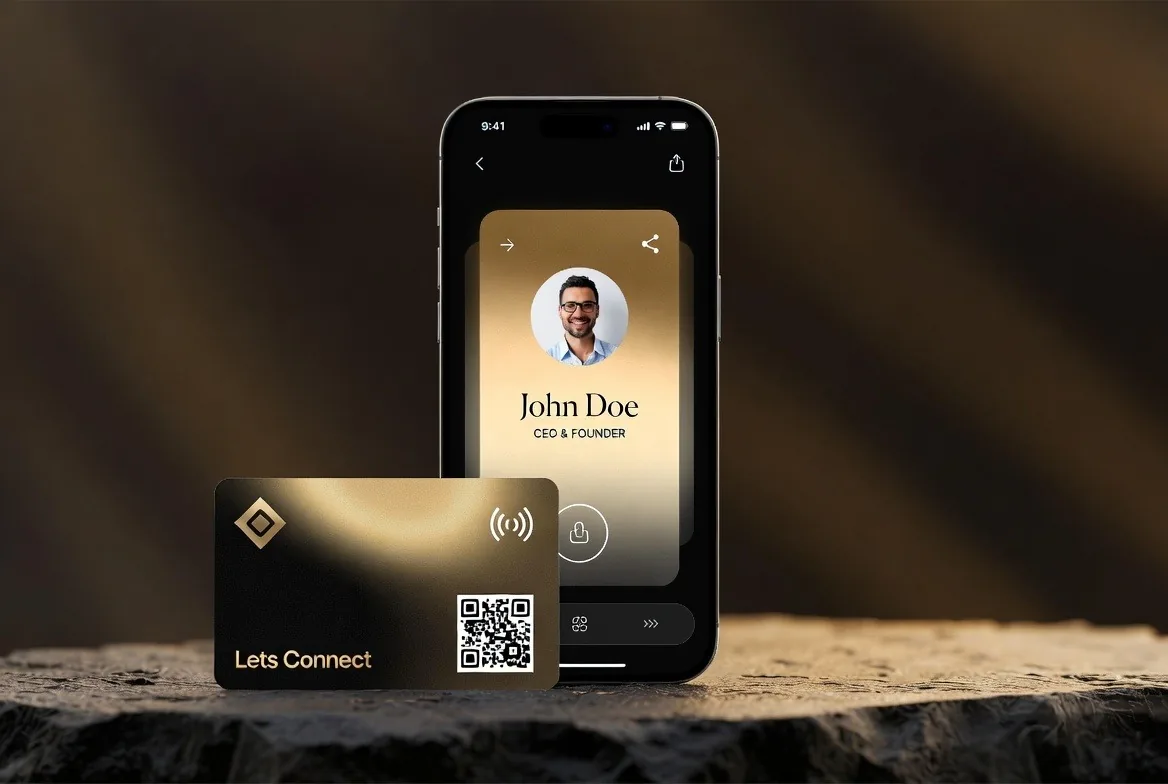
iPhone gives you three ways to make a digital business card: Apple's built-in Contact Poster with NameDrop, a Shortcuts workaround, or a dedicated platform. The first is free but only works between iPhones. The second is fiddly. A proper digital business card from Lets Connect opens on any phone, Android included, and shows you what happens after you share it.
The short version
- Contact Poster and NameDrop are free and built in, but only work iPhone to iPhone.
- The Shortcuts route works, though it breaks with iOS changes and still fails on Android.
- A Lets Connect card gives you one link that opens on any phone, with analytics and lead capture as an upgrade.
- Add your own card to Apple Wallet so you can share it without unlocking anything.
- Whichever route you pick, keep a QR code available for people you cannot NameDrop.
Which option should you choose?
| Contact Poster + NameDrop | Shortcuts + vCard | Lets Connect | |
|---|---|---|---|
| Cost | Free | Free | Free forever, optional one-time upgrades |
| Works with Android | No | Partly, via a link | Yes |
| Design control | Fonts and photo only | Minimal | Full templates and branding |
| Links, socials, attachments | No | Limited | Yes |
| Analytics | No | No | Views and link taps |
| Setup time | 2 minutes | 15 minutes or more | 3 minutes |
Option 1: Contact Poster and NameDrop (built in, free)
From iOS 17 onwards, every iPhone has a Contact Poster: a full-screen card with your photo, name and chosen typography that appears on the recipient's phone when you call or share.
Set up your Contact Poster
- Step 1. Open Contacts and tap your own name at the top of the list.
- Step 2. Tap Contact Photo & Poster, then Customise.
- Step 3. Choose a photo, Memoji or monogram, then pick a font and colour.
- Step 4. Set which name appears, then save.
- Step 5. Choose whether it shares automatically with contacts only or on request.
Share it with NameDrop
Hold the top of your iPhone near the top of another iPhone. A prompt appears on both screens and you choose whether to receive only or to share your own card as well. It is quick, and it works well between two iPhones.
Where it falls short
- iPhone to iPhone only, so Android users get nothing
- No website, social profiles, booking link or attachments
- No analytics, so you never know if your details were kept
- Both handsets need to be unlocked and physically close
Option 2: a Shortcut plus a vCard link
You can build a Shortcut that opens or shares a .vcf contact file you have stored in iCloud Drive, then add it to your Home Screen or share sheet.
- Step 1. Create your contact card and export it as a .vcf file.
- Step 2. Save the file to iCloud Drive and copy a shareable link.
- Step 3. In Shortcuts, create a new shortcut that opens that link.
- Step 4. Add it to your Home Screen for one-tap access.
It is free and it works, but it is fiddly to maintain, the file has to be replaced whenever your details change, and there is still no branding, no analytics and no lead capture.
Option 3: a Lets Connect digital business card (recommended)
The simplest route is a free Lets Connect profile, which opens as a web page on any phone. It takes about three minutes from signing up to a live card, and there is no app to install.
- Step 1. Open the Lets Connect free plan page in Safari and create a free account.
- Step 2. Add your name, role, photo, phone and email.
- Step 3. Add socials, website, WhatsApp and a booking link if you take appointments.
- Step 4. Pick one of the 40+ templates. On a paid plan you can also attach a brochure or price list.
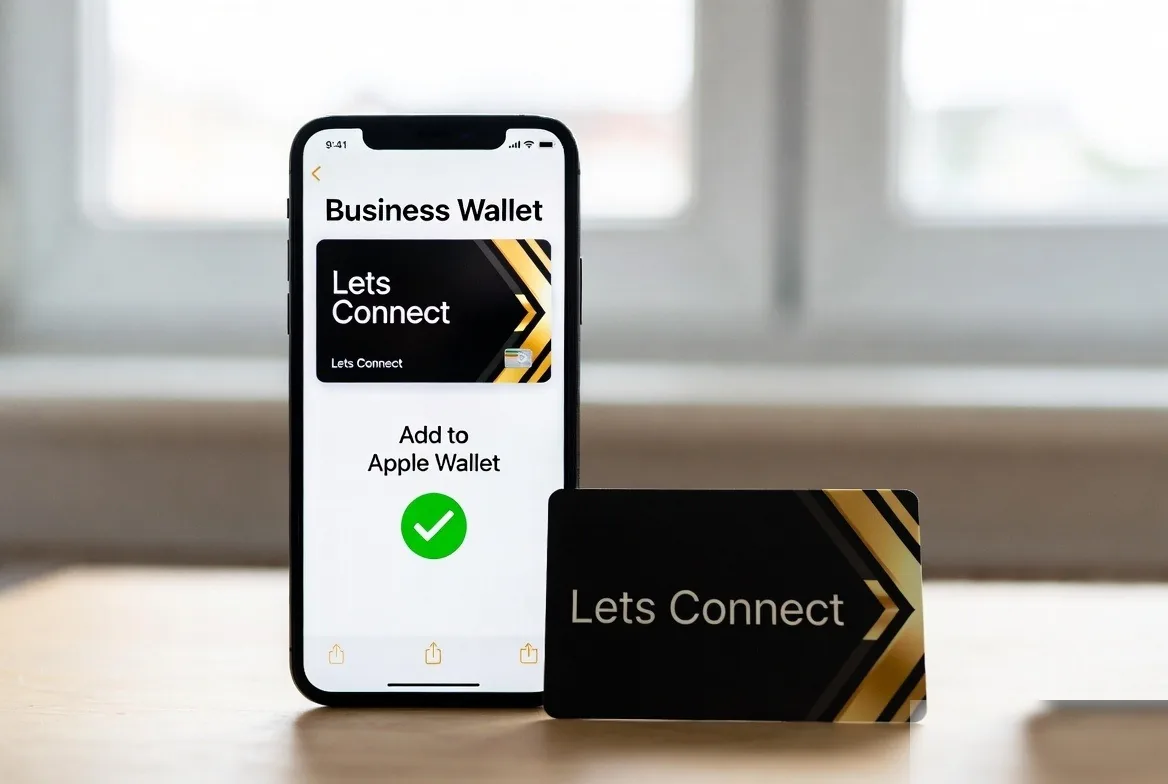
- Step 5. Tap Add to Apple Wallet to save your own card as a wallet pass for instant access.
- Step 6. Share your link, show your QR code, or order an NFC card later.
If you want the field-by-field version of this build, the full setup walkthrough covers what to include and what to leave out.
Adding your card to Apple Wallet
Why bother
A wallet pass sits with your boarding passes and loyalty cards, opens from the lock screen and works without hunting through Safari tabs. It is the quickest way to get your own QR code on screen mid-conversation.
How to add it
- Step 1. Open your card profile in Safari on the iPhone.
- Step 2. Tap Add to Apple Wallet.
- Step 3. Review the pass preview, then tap Add in the top corner.
- Step 4. Open Wallet and drag the pass up your stack so it is easy to reach.
- Step 5. Show the pass QR code to share; the recipient needs no app at all.
Our dedicated guide to adding a card to Apple Wallet covers the settings and troubleshooting in more depth.
Setting up in three minutes on an iPhone
Do the whole thing in Safari on the phone rather than on a laptop, because you will be checking how it looks on a phone anyway. Take the headshot before you start, decide on the two or three actions you want people to take, and have your booking link to hand. Everything else can be added later without republishing anything.
Once the profile is live, add it to your wallet, put the link in your Mail signature under Settings, and screenshot the QR code so it is one swipe away in Photos. Those three steps take longer than creating the card itself and they are what make you actually use it.
Do you still need a physical card as an iPhone user?
Not to share your details, no. Between the wallet pass, AirDrop, iMessage and a QR code, an iPhone alone covers every situation where you want to send someone your profile. The physical card earns its place for a different reason: it gives the other person something to act on and it lets you share without asking them to unlock anything or open an app.
If most of your networking happens on video calls and over email, stay digital and put your QR code in your signature and on your call background. If you meet people in person weekly, a card in your wallet is the faster route nine times out of ten.
What to put on your iPhone card
The essentials
- A real headshot rather than a logo, because people remember faces
- Name, role and company, spelled as people will search for them
- Phone, email and WhatsApp as one-tap actions
- The two or three social profiles you actually maintain
The parts that create work
- A booking link, so a meeting is confirmed before you have left the room
- A review link if word of mouth drives your pipeline
- One or two attachments: a brochure, price list or portfolio PDF
- A lead capture form so visitors leave their details as well as taking yours
Don't add everything. Four clear actions are easier to choose from than fourteen, and the other person only gives it a few seconds.
Troubleshooting on iPhone
NameDrop is not appearing
Both iPhones need to be unlocked, running a recent iOS version, and held with their top edges close together for a moment. Check that Bringing Devices Together is enabled in AirDrop settings, and note that it only works with another iPhone.
The wallet pass will not add
Open the profile in Safari rather than an in-app browser, and try again on mobile data if a corporate wi-fi network is filtering downloads. If the pass adds but looks out of date, remove it and add it again after saving your profile changes.
An NFC card is not opening
Hold the card against the top third of the back of the iPhone, screen on, and pause for a second rather than swiping it past. Thick cases and metal wallets can interfere. If the tap still fails, use the printed QR code as the fallback.
Sharing from iPhone
- AirDrop: open your card in Safari, hit Share, AirDrop to a nearby iPhone.
- NameDrop: bring the two iPhones together to exchange contact cards directly.
- iMessage: paste your link into a chat and the recipient sees a rich preview.
- QR code: show the code from your profile or your wallet pass on screen.
- NFC: order a physical card and tap it on the other person's phone.
For anything printed, on a stand or on a slide, the QR route is the one that reaches everybody. Sizing and contrast rules are in our QR code card guide.
Frequently asked questions
Is a Contact Poster the same as a digital business card?
No. A Contact Poster styles how your contact card appears on other iPhones. A digital business card is a web page with your links, attachments and a save button that works on any phone.
Does NameDrop work with Android?
No, it is an Apple-to-Apple feature. Use a link or QR code for Android recipients.
Do I need an app to create a digital business card on iPhone?
No. You can build and share the whole thing from Safari, and the recipient installs nothing either.
Can I use my iPhone to write an NFC card?
Only with a third-party NFC-writing app, since Apple does not expose native tag-writing in Safari. Once installed, that app can write and verify a card in the same way our built-in browser tools do for Android.
Which iPhones can read NFC business cards?
iPhone XS and later read tags in the background with the screen on.
Is the free option really free?
Yes. The profile, contact details, social links and QR code stay free, and hardware or advanced features are optional upgrades listed on the pricing page.
The Contact Poster is fine between two iPhones. For meetings, events and anyone on Android, a Lets Connect digital business card does more, and it costs nothing to start.
Your digital business card on iPhone
iPhone users get the smoothest experience with Lets Connect: Apple Wallet pass, NFC tap-to-share, native share sheet, and a QR code that opens directly in Safari. The full platform is currently on limited-time lifetime pricing.
- Free Lets Connect plan: full digital profile with Apple Wallet, social links, share-to-save and a QR code: free forever, works on every iPhone.
- Full Brand Presence - £49 one-time: adds blog, products, testimonials, gallery, document attachments, 40+ templates, password protection, visibility controls and analytics.
- Business Add-ons - £99 one-time (most popular): adds Kanban CRM, AI Card Scanner, Reviews engine, Bookings, Enquiries, Lead Capture, Custom Forms, Data Export and Location Tracker.
- Physical cards (iPhone NFC compatible): PVC £20, Wooden £50, Metal £100: 30-day money-back guarantee.
More iPhone tutorials on the Lets Connect blog, full plan list on the pricing page, or create your free card now.
Put this guide into practice
For quick QR sharing from your phone, explore apple and google wallet. The guide explains the setup and which plan includes it.
To choose the presentation and colours for your card, explore templates and colours. The guide explains the setup and which plan includes it.
To collect the other person’s details during the exchange, explore lead capture. The guide explains the setup and which plan includes it.
Start with your free digital business card, then choose paid tools only when your workflow needs them.
Why Lets Connect is the best digital business card
- Free to start: a digital card with your own link and QR code, no card details needed.
- Pay once: lifetime plans, no card subscription.
- The follow-up is built in: lead capture, a CRM, a card scanner, bookings, forms and review links in one dashboard.
- No app on either side: it opens in the browser on iPhone and Android.
- 5.0on Google from 17 reviews
- 5.0on Trustpilot from 9 reviews
- 99.4% positiveon eBay from 239 ratings